

Unlocking the full potential of your Windows 11 experience often comes down to mastering efficient navigation, and that’s where powerful Windows 11 keyboard shortcuts become indispensable. While many users rely solely on their mouse, integrating these quick commands can significantly boost your productivity, streamline workflows, and make interacting with your operating system far more intuitive. This guide will explore the most impactful shortcuts that every Windows 11 user should know, transforming everyday tasks into seamless actions and saving valuable time.
Many wonder why they should bother with keyboard shortcuts when the mouse feels so natural. The answer lies in efficiency and reducing repetitive strain. Imagine instantly snapping windows, taking precise screenshots, or cycling through open applications with a mere flick of your fingers. These actions, when performed with shortcuts, are often faster and require less effort than navigating menus or clicking icons. Learning how to use Windows 11 shortcuts effectively is a crucial step for anyone looking to optimize their digital workspace, whether for work, study, or gaming.
What are Windows 11 productivity shortcuts? These are specific key combinations designed to execute commands rapidly, such as managing windows, capturing screens, accessing system tools, or navigating text. They empower users to perform tasks like opening the clipboard history, snapping applications, or recording gameplay without interrupting their flow, leading to significant time savings and enhanced efficiency.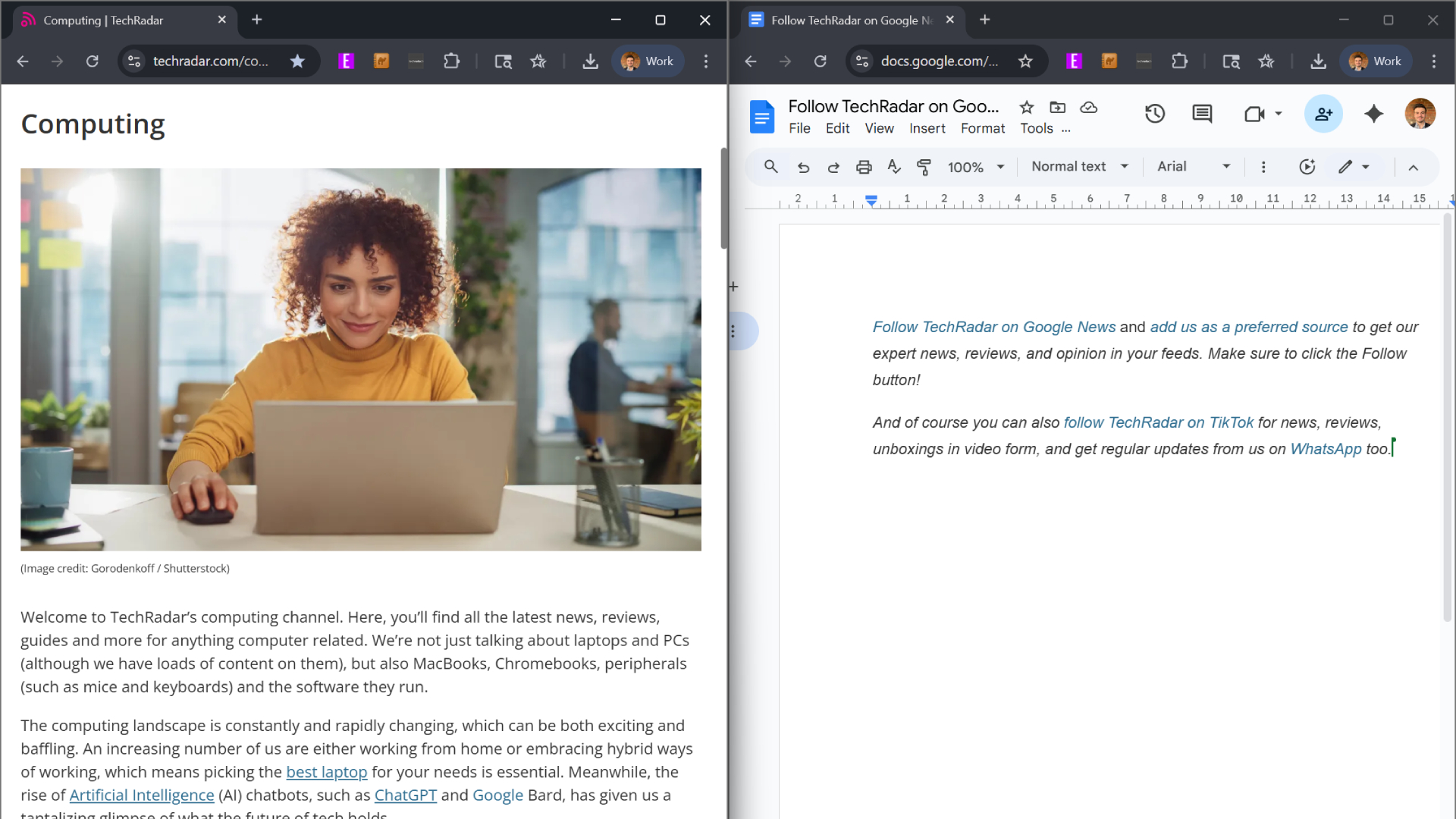
One of the most underutilized yet powerful Windows 11 shortcuts for beginners is Windows + . (period). This simple combination opens the Emojis and more panel, granting instant access to a vast library of emojis, GIFs, kaomoji, and, critically, your clipboard history. Forget re-typing or searching for that specific symbol or copied text from an hour ago; the clipboard history, accessible via Windows + V once enabled, stores multiple copied items, making it a lifesaver for anyone dealing with text or image snippets. This feature alone demonstrates the immense value of learning these quick commands.
For those who frequently capture visual information, Windows + Shift + S is a game-changer. This shortcut activates the Snipping Tool, allowing you to select a specific rectangular area, a freeform shape, a window, or the entire screen for a screenshot. It’s vastly superior to the traditional PrtScn key, offering immediate control over what you capture. Furthermore, the tool now includes options for screen recording, a color picker, and a text grabber, making it a comprehensive solution for visual data management. This shortcut is a prime example of what are Windows 11 productivity shortcuts at their best, directly addressing common user needs.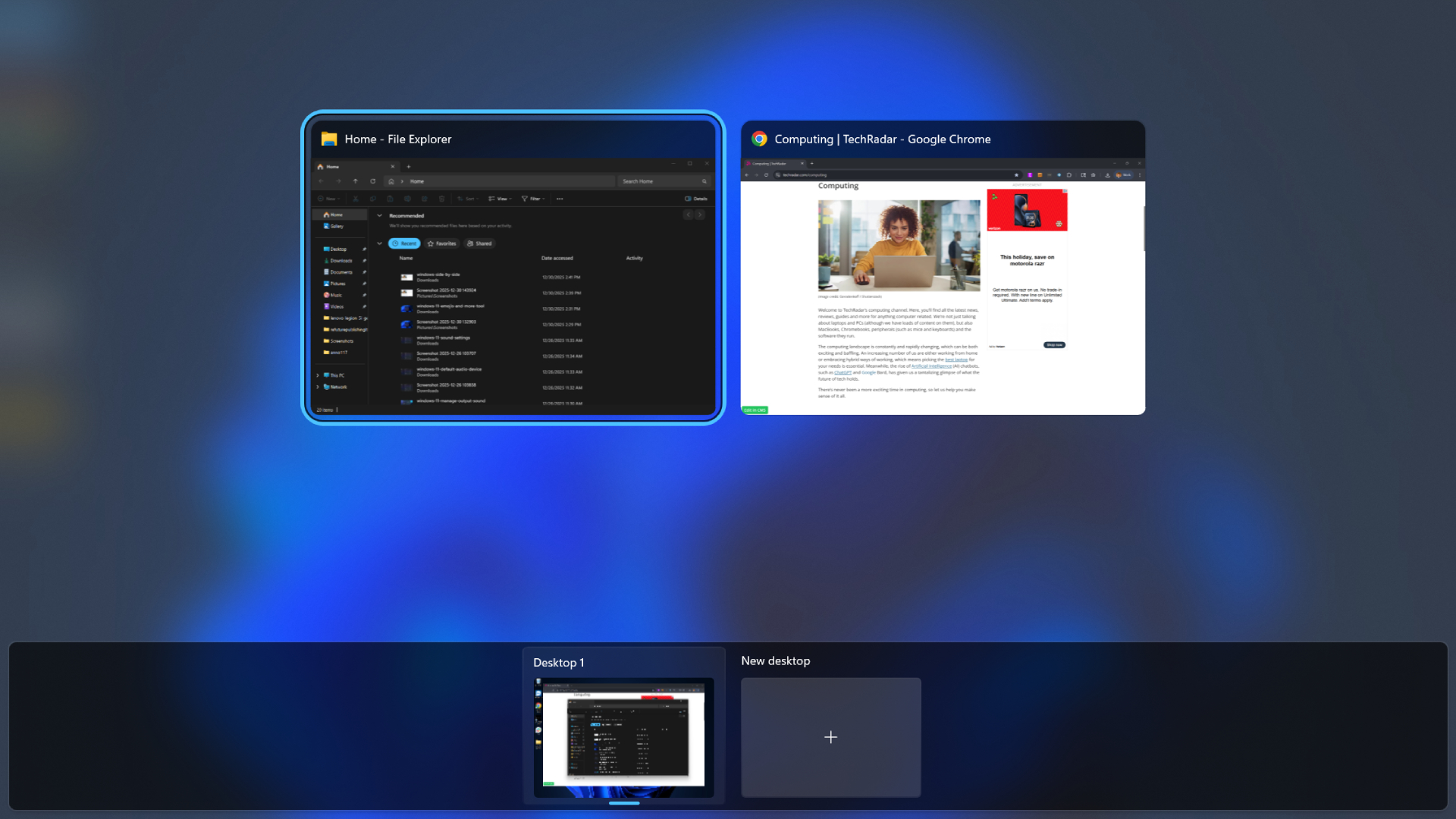
Managing multiple applications and windows efficiently is paramount for productivity. The Windows + Alt + Arrow keys shortcut offers dynamic window snapping, allowing you to quickly arrange active windows into halves or quadrants of your screen. This is particularly useful for side-by-side comparisons or when you need to view multiple documents simultaneously without constant resizing. This feature, alongside other Windows 11 snap layouts news, highlights Microsoft’s commitment to enhancing multitasking capabilities, making it easier to work across various applications.
Multi-display users will find Windows + Shift + Arrow keys indispensable. This shortcut swiftly moves the active window between different monitors, eliminating the need to drag windows manually. Whether you’re shifting a full-screen video, a spreadsheet, or a game that launched on the wrong screen, this command ensures seamless transitions. For best Windows 11 shortcuts for productivity, this ranks highly, especially for complex setups that demand fluid window management across multiple screens.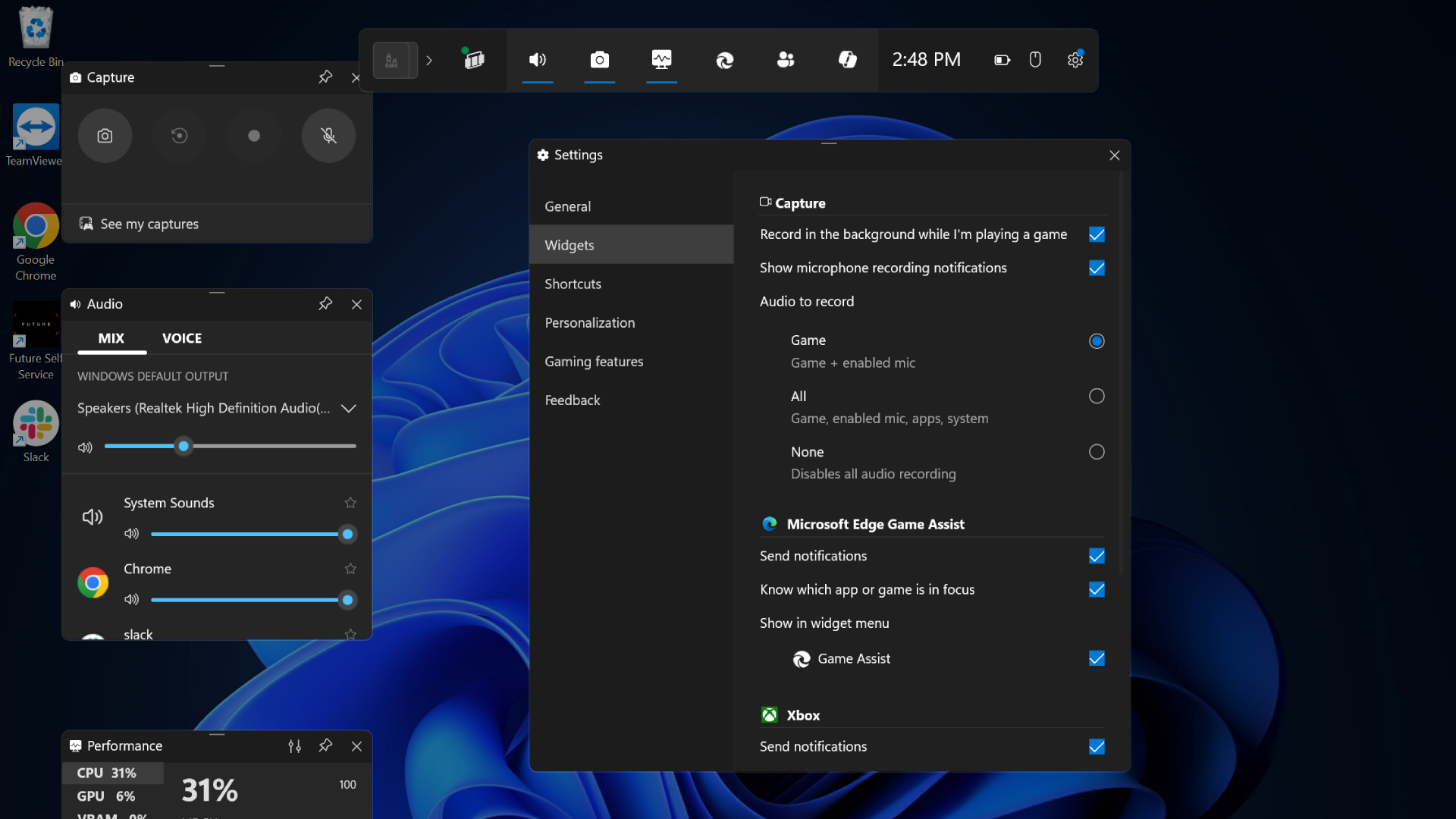
While many are familiar with Alt + Tab for cycling through open windows, it’s worth noting its enduring utility. This classic shortcut remains a cornerstone of rapid application switching. However, for a broader overview of all open windows across multiple virtual desktops, Windows + Tab provides a more visual and comprehensive interface. The debate of Alt Tab vs Windows Tab often boils down to personal preference and specific use cases, but both are essential for fluid navigation in Windows 11.
Gamers aren’t left out when it comes to powerful shortcuts. Windows + Alt + G allows for instant 30-second gameplay clip recording, perfect for capturing highlights or suspicious moments. After enabling background recording in the Xbox Game Bar settings (Windows + G), this shortcut saves clips directly to your Captures folder. This is a significant part of Windows 11 gaming shortcuts update efforts, providing quick access to content creation features without leaving the game. For longer recordings, Windows + Alt + R initiates continuous screen recording.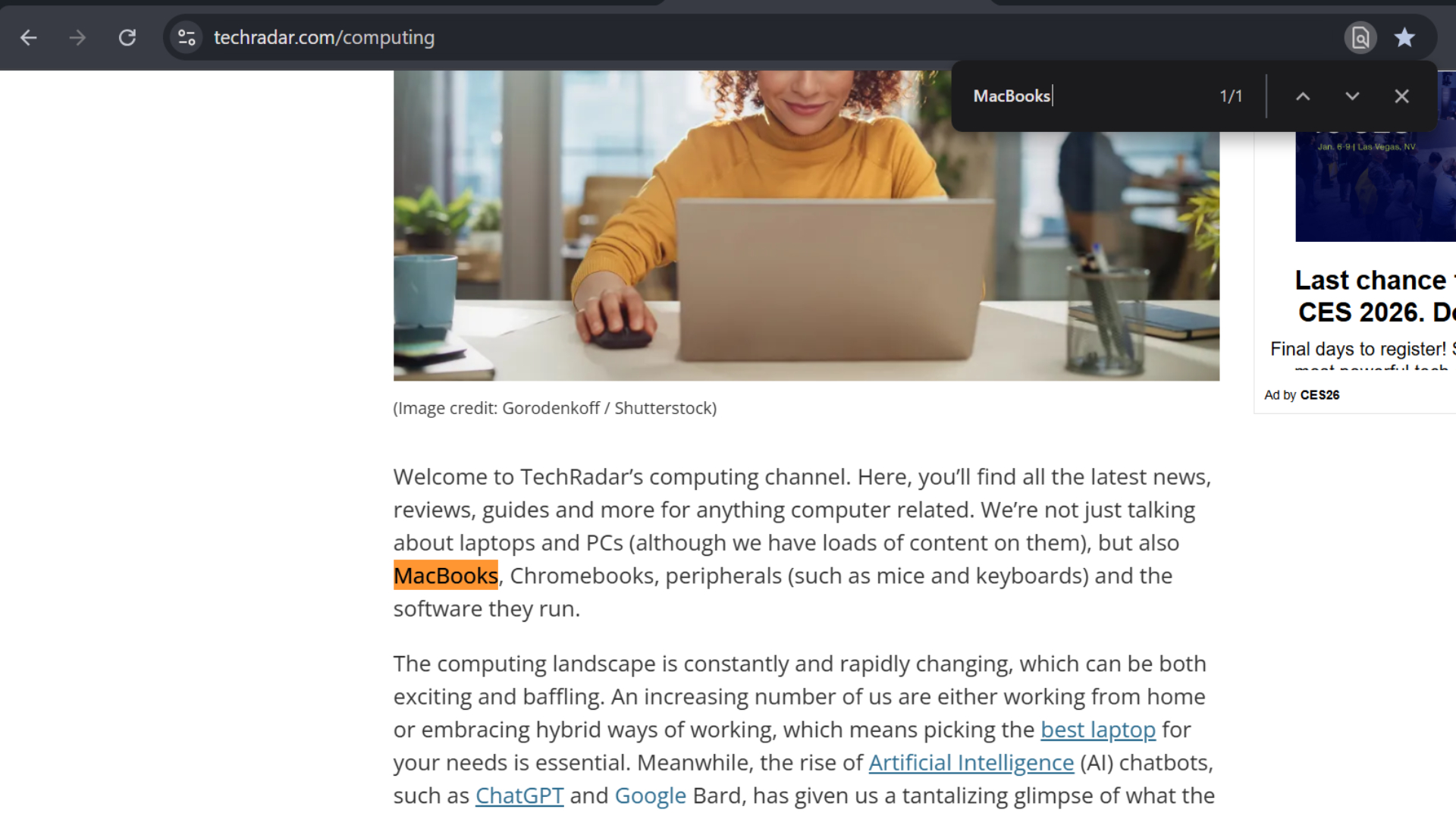
For precise text editing and navigation, Ctrl + Arrow keys is a simple yet powerful tool. Instead of moving the cursor character by character, this shortcut jumps it word by word, drastically speeding up text selection and editing. Combine it with Shift (Ctrl + Shift + Arrow keys) to highlight entire words or lines, making tasks like copying, pasting, or deleting specific sections of text much faster. This shortcut exemplifies how to use Windows 11 shortcuts for enhanced text manipulation.
Finding specific information within a document or web page becomes effortless with Ctrl + F. This universal shortcut opens a search field, allowing you to quickly locate any word, phrase, or number. It’s an invaluable tool for researchers, writers, and anyone who needs to pinpoint information rapidly, providing not just the location but often a count of occurrences, which can be surprisingly useful.
Finally, Ctrl + R provides an instant refresh for your active browser page, ensuring you have the most current information on live blogs, sales events, or dynamic content. And for those accidental tab closures, Ctrl + Shift + T is a true lifesaver, reopening recently closed tabs in the order they were shut, preventing lost work or forgotten web pages. These simple yet effective commands are vital for maintaining an uninterrupted workflow.
Mastering these core Windows 11 keyboard shortcuts significantly enhances your daily computing experience. From basic navigation to advanced productivity tasks, integrating these commands into your routine will lead to a more efficient and less frustrating interaction with your PC. As Windows 11 continues to evolve, staying updated with the best Windows 11 shortcuts 2025 will ensure you always leverage the latest efficiency gains.